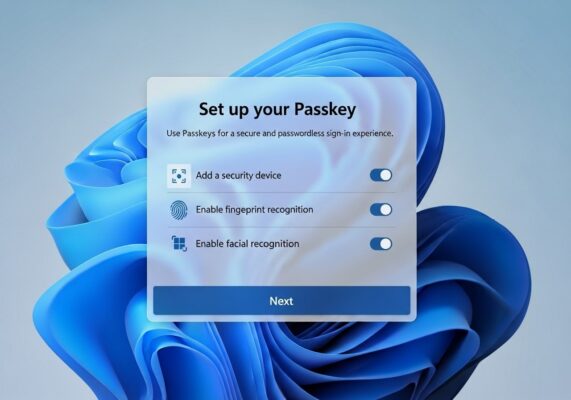
Microsoft Is Removing Passwords in 2025: How to Set Up Passkeys in Windows 11 and Microsoft 365
Say goodbye to old-school passwords—Microsoft is going all-in on passkeys, starting in August 2025. If you’re not ready, your ability to sign in securely to Windows 11, Microsoft 365, and other Microsoft products could be disrupted.
In this guide, you’ll learn:
- ✅ What passkeys are
- ✅ How Microsoft is switching to passwordless login
- ✅ Step-by-step Microsoft passkey setup guides
- ✅ Why passkeys are more secure
- ✅ The difference between passkey vs password security
- ✅ SEO keywords and metadata for your own content
🔎 What Is a Passkey?
A passkey is a modern login method that replaces traditional passwords with cryptographic key pairs. Unlike a password (something you know), a passkey is something you have and are—using biometrics (like Face ID, fingerprint, or Windows Hello), a hardware security key, or a PIN.
Benefits of passkeys:
- Phishing-resistant
- Cross-platform compatible
- End-to-end encrypted
- Built on FIDO2 and WebAuthn standards
Passkey vs Password Security: Passwords can be stolen or guessed. Passkeys cannot. They never leave your device and are not vulnerable to phishing or reuse attacks.
💻 Microsoft Is Removing Passwords Across Its Products in 2025
By August 2025, Microsoft will stop supporting saved passwords and autofill features in several core apps and services. They’re replacing them with secure passkey login support in:
| Microsoft Product | Upcoming Passkey Features |
|---|---|
| Microsoft 365 | Passwordless login for all users using passkeys |
| Windows 11 | Built-in passkey manager in Settings |
| Microsoft Edge | Secure passkey autofill and sync |
| Azure Active Directory | FIDO2 security key login for enterprise environments |
🛠️ Step-by-Step Microsoft Passkey Setup Guide
✅ How to Enable Passkeys in Windows 11
- Open Settings → Accounts
- Click Passkeys under “Sign-in options”
- Choose Create a new passkey
- Select your method: Windows Hello, fingerprint, PIN, or security key
- Follow the prompts to finish setup
✅ How to Set Up Passkeys in Microsoft 365
- Visit account.microsoft.com
- Sign in with your Microsoft account
- Go to Security → Advanced Security Options
- Select Sign in with a passkey
- Register your device and verify your identity
✅ How to Use FIDO2 Security Keys with Azure Active Directory
- Open the Azure Portal
- Navigate to Azure Active Directory → Authentication Methods → Policies
- Enable FIDO2 Security Key for your tenant
- Apply the policy to relevant users or groups
📊 Why You Should Switch to Passkeys Now
- 91% of breaches begin with stolen credentials
- Passkeys are supported by Microsoft, Apple, and Google
- They sync securely across devices
- They reduce help desk requests and login friction
🔑 Microsoft Passkey Update 2025: What You Need to Know
Millions of users will be affected by the Microsoft passkey update in 2025. If you rely on:
- Saved passwords in Microsoft Edge
- Outlook autofill login
- Work or school Microsoft 365 accounts
- Signing into Windows 11 with a password
You will be prompted to switch to passkeys—or eventually be locked out without one.
📞 Need Help With Microsoft Passkey Setup?
At Oshawa Computers, we provide:
- Microsoft 365 passkey setup
- Windows 11 passwordless configuration
- Business-wide passkey rollouts
- FIDO2 device deployment and user training
Website: www.oshawacomputers.net
Email: solutions@fscs.ca
Phone: 289-201-5911
📎 Ready to Switch to Passkeys?
The Microsoft passkey update in 2025 is coming fast. Use this step-by-step Microsoft passkey setup guide to prepare now. A safer, passwordless future starts today.