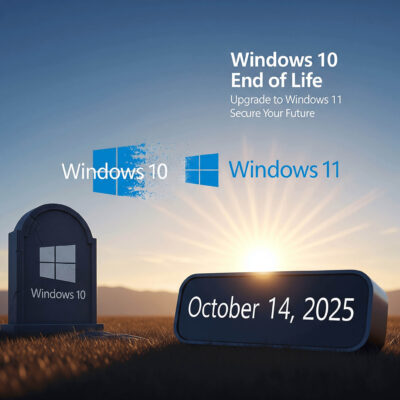
The Countdown Begins: Windows 10 End of Life and What It Means for Your Digital Security
In the ever-evolving landscape of technology, one constant remains: change is inevitable. As we approach October 14, 2025… Microsoft’s Windows 10 operating system will reach its end of life (EOL). This Windows 10 End of Life milestone isn’t just another tech update; it represents a significant turning point for millions of users worldwide who rely on Windows 10 for their daily computing needs.
With over a billion devices currently running Windows 10, this end-of-support deadline has far-reaching implications for cybersecurity, business operations, regulatory compliance, and productivity. Whether you’re a small business owner, an IT professional, or a home user, understanding what Windows 10 EOL means and how to prepare is crucial for maintaining your digital security and operational efficiency.
In this comprehensive guide, we’ll explore the ramifications of Windows 10 end of life, what it means for your systems, and most importantly, how Oshawa Computers can help you navigate this transition smoothly and securely. Let’s dive into what you need to know to stay protected beyond October 2025.
Understanding Windows 10 End of Life: What It Really Means
When Microsoft declares an operating system has reached its “end of life,” it doesn’t mean your computer will suddenly stop working on October 14, 2025. This Windows 10 End of Life event means your Windows 10 system will continue to function, but this is where the good news ends.
The Critical Support Cutoff
After the EOL date, Microsoft will no longer provide:
- Security updates and patches: Perhaps the most critical loss, as new vulnerabilities discovered after October 2025 will remain unpatched, leaving your system increasingly exposed to cyber threats.
- Technical support: Microsoft’s customer service will no longer assist with Windows 10-related issues.
- Feature updates: No new capabilities or improvements will be added to the operating system.
- Bug fixes: Software glitches and compatibility issues will remain unresolved.
This support cutoff creates what security professionals call a “vulnerability window”—a period where known security flaws remain unpatched, creating perfect opportunities for cybercriminals to exploit these weaknesses.
The Ripple Effect on Software and Hardware
The end of Windows 10 support triggers a cascade of additional consequences:
- Third-party software compatibility issues: Software vendors typically align their support policies with Microsoft’s lifecycle. As Windows 10 reaches EOL, many applications will gradually end support for the platform.
- Hardware driver limitations: New hardware devices may not offer Windows 10 drivers, limiting your ability to upgrade components or peripherals.
- Compliance violations: For regulated industries, running unsupported operating systems often constitutes a compliance violation, potentially resulting in penalties and increased liability.
The Security Risks: Why Continuing with Windows 10 After EOL Is Dangerous
The security implications of running an unsupported operating system cannot be overstated. Here’s what businesses and individuals face when continuing to use Windows 10 after Windows 10 End of Life in October 2025:
Unpatched Vulnerabilities Become Permanent Security Holes
When a new security vulnerability is discovered in Windows 10 after the EOL date, Microsoft will not develop or release patches to fix it. These unaddressed vulnerabilities become permanent security holes that malicious actors can exploit.
According to cybersecurity experts, hackers often stockpile exploits specifically for after an operating system’s end of support, knowing these vulnerabilities will never be patched. This creates a “zero-day forever” scenario where security flaws remain exploitable indefinitely.
The cybersecurity landscape is constantly evolving, with new threats emerging daily. In 2024 alone, thousands of new vulnerabilities were discovered across various operating systems. Without the protection of regular security updates, Windows 10 users will be exposed to an ever-growing list of security threats with no recourse other than upgrading or implementing costly third-party security solutions that may only provide partial protection.
Increased Risk of Malware and Ransomware
Unsupported systems become prime targets for malware and ransomware attacks. The global average cost of a data breach reached $4.88 million in 2024, with this figure expected to continue rising. A single successful attack on an outdated Windows 10 machine could cost millions in downtime, lost data, and reputational damage.
Modern cyber threats increasingly target firmware and hardware-level vulnerabilities—areas where Windows 11 has significantly improved security with features like built-in Trusted Platform Module (TPM) 2.0 support, virtualization-based security, and advanced threat protection.
Ransomware attacks in particular have become more sophisticated and devastating in recent years. Criminal organizations now employ double and triple extortion tactics—not only encrypting your data but also threatening to leak sensitive information and launch denial-of-service attacks if ransoms aren’t paid. For businesses running unsupported operating systems, the risk of falling victim to these attacks increases exponentially as security gaps remain unaddressed.
Microsoft reports that Windows 11 devices experienced 62% fewer security incidents compared to those running older operating systems. This stark difference highlights how modern security features built into newer operating systems provide substantial protection against contemporary threats.
The Domino Effect on Your Network
Perhaps most concerning is how a single unsupported Windows 10 machine can compromise an entire network. Cybersecurity follows the principle that a system is only as secure as its weakest link. An unpatched Windows 10 computer connected to your network becomes that weak link—a potential entry point for attackers to gain access to your broader infrastructure.
This network vulnerability creates what security professionals call a “lateral movement risk,” where attackers gain access through one compromised device and then move sideways through your network to access more valuable systems and data. Even if you’ve invested heavily in securing your critical infrastructure, a single outdated Windows 10 machine can undermine your entire security posture.
For small businesses, which often lack dedicated IT security teams, this risk is particularly acute. According to recent studies, 60% of small businesses that experience a significant data breach close within six months of the incident. The combination of financial impact, reputational damage, and customer loss creates a perfect storm that many smaller organizations cannot weather.
Compliance and Legal Implications: Beyond Just Technical Risks
For businesses, the risks extend beyond technical vulnerabilities into legal and regulatory territory:
Regulatory Non-Compliance
Data protection regulations and industry standards such as GDPR, HIPAA, PCI DSS, and others require organizations to maintain secure and up-to-date systems. Regulators have explicitly warned that using unsupported software can violate these obligations.
The UK’s Information Commissioner’s Office (ICO) has stated that running operating systems past end-of-support can be considered a failure to meet required security measures. In previous cases, companies were fined the maximum amount under pre-GDPR law for using outdated, unpatched systems. Under current regulations, such fines could be substantially higher.
Increased Liability and Insurance Complications
Should a data breach occur on an unsupported system, organizations face:
- Increased legal liability: Courts and regulators view failure to update from unsupported systems as negligence.
- Insurance complications: Many cyber insurance policies explicitly exclude coverage for incidents involving unsupported software.
- Customer trust erosion: Clients increasingly demand evidence of robust cybersecurity practices, including running supported software.
Business Impact: Operational and Productivity Consequences
Beyond security and compliance, continuing to use Windows 10 after EOL creates significant operational challenges:
Diminished Performance and Reliability
Without ongoing updates and optimizations, Windows 10 systems will gradually experience:
- Degraded performance: Systems tend to slow down over time without optimization updates.
- Increased crashes and errors: Unresolved bugs accumulate, leading to system instability.
- Compatibility issues with new software: As developers focus on Windows 11, new applications may not work properly on Windows 10.
Higher IT Support Costs
Organizations continuing to use Windows 10 past EOL typically experience:
- Increased troubleshooting time: IT teams spend more time addressing issues that would have been fixed by updates.
- Custom workarounds: Technical staff must develop workarounds for problems that would otherwise be resolved through official patches.
- Emergency response costs: When security incidents occur, remediation costs are typically much higher than preventative measures would have been.
Productivity Losses
Employee productivity suffers when working with outdated systems:
- Downtime increases: System crashes and security incidents lead to more frequent work disruptions.
- Workflow inefficiencies: Employees cannot benefit from new productivity features available in Windows 11.
- Collaboration barriers: Integration with modern collaboration tools becomes increasingly difficult.
Your Options: Navigating the Windows 10 End-of-Life Transition
As the Windows 10 End of Life date of October 14, 2025, approaches, organizations and individuals have several options to consider::
Option 1: Upgrade to Windows 11
For compatible hardware, upgrading to Windows 11 is the most straightforward path forward:
- Cost: Free for eligible Windows 10 devices that meet the system requirements.
- Benefits: Enhanced security features, improved performance, and continued support until at least 2031.
- Considerations: Hardware compatibility is a significant factor—many older devices cannot run Windows 11 without hardware upgrades.
Option 2: Hardware Refresh with Windows 11
For systems that don’t meet Windows 11 requirements:
- Cost: Varies based on new hardware selection, but represents a significant investment.
- Benefits: New hardware with Windows 11 provides the best performance, security, and longevity.
- Considerations: Requires planning for data migration, potential application compatibility testing, and user training.
Option 3: Extended Security Updates (ESU) Program
For organizations that cannot immediately upgrade:
- Cost: $61 USD per device for Year One for businesses (price doubles each subsequent year), or $30 USD for individuals for one year.
- Benefits: Continues to provide critical security updates for up to three years after Windows 10 EOL.
- Limitations: Does not include new features, customer-requested non-security updates, or design changes. Only a temporary solution.
Option 4: Cloud-Based Solutions
For organizations looking to modernize their approach:
- Cost: Subscription-based, typically per user per month.
- Benefits: Windows 10 virtual machines in services like Windows 365, Azure Virtual Desktop, and other Microsoft cloud platforms receive ESU at no additional cost.
- Considerations: Requires reliable internet connectivity and potential workflow adjustments.
Preparing for the Transition: A Strategic Approach
Whether you’re a business or individual user, preparing for Windows 10 EOL requires a strategic approach. The key is to start early—waiting until the last minute creates unnecessary risk and potential disruption.
For Businesses: Comprehensive 6-Step Transition Plan
1. Conduct a Thorough Technology Inventory
Start by creating a detailed inventory of all your technology assets:
- Hardware identification: Document every Windows 10 device in your organization, including desktops, laptops, servers, and specialty equipment.
- System specifications: Record the processor, RAM, storage, and TPM version for each device to determine Windows 11 compatibility.
- Age and warranty status: Note the age of each device and whether it’s still under warranty to help prioritize replacements.
- Critical vs. non-critical systems: Identify which systems are mission-critical and which can be addressed later in your migration plan.
- Software inventory: Catalog all software applications running on these devices, including versions and licensing information.
This inventory becomes your roadmap for the entire transition process, helping you prioritize resources and identify potential challenges early.
2. Perform Detailed Application Compatibility Assessment
Application compatibility can make or break your Windows 11 migration:
- Test critical applications: Create a test environment to verify that your essential business applications function correctly on Windows 11.
- Contact vendors: Reach out to software vendors to confirm Windows 11 compatibility and obtain any necessary updates.
- Identify legacy applications: Determine which applications may require replacement or virtualization solutions.
- Document dependencies: Map out how applications interact with each other and with your infrastructure to avoid unexpected disruptions.
- Develop application migration strategies: For each incompatible application, decide whether to upgrade, replace, virtualize, or retire it.
3. Create a Detailed Budget and Timeline
Financial planning is crucial for a successful transition:
- Hardware costs: Budget for new devices or component upgrades for existing systems.
- Software licensing: Account for any necessary software upgrades or replacements.
- Implementation costs: Include labor costs for IT staff or consultants handling the migration.
- Training expenses: Budget for user training on Windows 11 and any new applications.
- Contingency fund: Set aside 15-20% of your total budget for unexpected issues.
- Timeline development: Create a realistic schedule with key milestones, allowing ample time for testing and troubleshooting.
- Resource allocation: Determine who will be responsible for each aspect of the migration.
4. Implement a Methodical Phased Migration Approach
A phased approach minimizes risk and disruption:
- Pilot phase: Begin with a small group of non-critical systems to identify and resolve issues.
- Department-by-department rollout: Schedule migrations by department or function to contain any potential problems.
- Critical system migration: Only after successful pilot deployments, move to your essential infrastructure.
- Rollback procedures: Develop clear processes for reverting changes if significant issues arise.
- Progress tracking: Maintain a detailed log of completed migrations and any issues encountered.
- Regular stakeholder updates: Keep leadership and affected departments informed of progress and any schedule adjustments.
5. Develop Comprehensive User Training and Support
User adoption is critical to migration success:
- Training materials: Create guides, videos, and reference materials tailored to your organization’s specific needs.
- Hands-on workshops: Conduct training sessions where users can experience Windows 11 before migration.
- Department champions: Identify tech-savvy employees in each department who can provide peer support.
- Support desk preparation: Ensure your IT support team is fully trained on Windows 11 and common migration issues.
- Feedback mechanisms: Establish channels for users to report issues and suggest improvements.
- Post-migration check-ins: Schedule follow-ups with departments after migration to address any lingering concerns.
6. Establish Robust Contingency and Security Plans
For systems that cannot be immediately upgraded:
- Extended Security Updates enrollment: Register eligible systems for Microsoft’s ESU program.
- Enhanced security measures: Implement additional layers of protection such as network segmentation for vulnerable systems.
- Application virtualization: Consider running legacy applications in a virtualized environment on supported systems.
- Cloud-based alternatives: Explore Windows 365 or Azure Virtual Desktop for accessing Windows 11 from older hardware.
- Accelerated replacement schedule: Develop a prioritized timeline for replacing incompatible systems.
- Regular security assessments: Schedule more frequent security audits for systems running outdated operating systems.
For Individual Users: Detailed 4-Step Action Plan
1. Verify Your Device Compatibility
Before making any decisions, understand your current system’s capabilities:
- Use Microsoft’s PC Health Check app: This official tool will tell you definitively if your computer meets Windows 11 requirements.
- Check key specifications: Windows 11 requires at least a 1 GHz processor with 2 or more cores, 4GB RAM, 64GB storage, and TPM 2.0.
- BIOS/UEFI settings: Some computers have TPM and Secure Boot disabled in BIOS settings, which can be enabled to meet requirements.
- Consider partial upgrades: In some cases, adding RAM or replacing storage might be sufficient to meet Windows 11 requirements.
- Research compatibility workarounds: For personal use, there are unofficial methods to install Windows 11 on unsupported hardware, though these aren’t recommended for business environments.
2. Implement Comprehensive Data Backup
Protect your valuable information before any system changes:
- Multiple backup locations: Follow the 3-2-1 backup rule—three copies of your data on two different media types with one copy stored off-site.
- Cloud storage options: Services like OneDrive, Google Drive, or Dropbox can automatically sync your important files.
- External hard drives: Use physical backup media for large amounts of data or sensitive information.
- System image creation: Create a complete system image that can restore your entire Windows 10 setup if needed.
- Application data: Don’t forget to back up application-specific data that may not be in standard document folders.
- Backup verification: Actually test your backups to ensure they can be successfully restored.
3. Determine Your Optimal Upgrade Path
Based on your compatibility check, choose the best approach:
- In-place upgrade: If your device is compatible, perform an in-place upgrade to Windows 11 while keeping your files and most settings.
- Clean installation: For better performance, consider a fresh Windows 11 installation after backing up your data.
- New device purchase: If your current computer doesn’t meet requirements, research Windows 11 devices that fit your needs and budget.
- Alternative options: Consider whether a Chromebook, Mac or Linux machine might better serve your needs going forward.
- Timing considerations: Decide whether to upgrade immediately or wait for hardware sales or specific Windows 11 feature updates.
- Extended support option: For compatible devices you wish to keep on Windows 10 temporarily, research the consumer ESU program.
4. Familiarize Yourself with Windows 11
Prepare for the new experience before making the switch:
- Watch tutorial videos: Microsoft and many tech channels offer comprehensive guides to Windows 11 features.
- Try it in a store: Visit electronics retailers to get hands-on experience with Windows 11 devices.
- Review key differences: Understand major changes like the centered Start menu, new Settings app, and redesigned File Explorer.
- Identify productivity features: Learn about new features like Snap Layouts, Desktops, and improved Microsoft Teams integration.
- Customize settings: Know how to adjust Windows 11 to your preferences once installed.
- Prepare for learning curve: Set aside time after upgrading to explore and adjust to the new interface.
How Oshawa Computers Can Help You Navigate Windows 10 End of Life
At Oshawa Computers, we understand that transitioning from Windows 10 due to its Windows 10 End of Life can seem daunting. Our team of certified IT experts specializes in making this process smooth and stress-free for businesses and individuals throughout Durham Region, Clarington, Kawartha Lakes, Northumberland County, York Region, and Toronto.
Our Windows 10 EOL Transition Services
1. Comprehensive System Assessment
Our technicians will conduct a thorough evaluation of your current IT infrastructure to:
- Identify all Windows 10 devices in your environment
- Determine which systems can be upgraded to Windows 11
- Assess hardware compatibility and recommend necessary upgrades
- Evaluate your applications for Windows 11 compatibility
2. Strategic Migration Planning
We develop customized migration strategies tailored to your specific needs:
- Phased implementation plans that minimize disruption
- Budget-conscious approaches that maximize your existing investments
- Timeline development that aligns with your business priorities
- Contingency planning for critical systems
3. Professional Implementation
Our certified technicians handle every aspect of your transition:
- Data backup and protection during migration
- Operating system upgrades and clean installations
- Data transfer and application reinstallation
- Network reconfiguration and optimization
- User account setup and permission management
4. Post-Migration Support
We ensure your new environment works flawlessly:
- System testing and verification
- User training and orientation
- Troubleshooting and issue resolution
- Ongoing technical support
Special Services for Businesses
For our business clients, we offer additional specialized services:
Enterprise-Grade Security Implementation
- Advanced threat protection configuration
- Multi-factor authentication setup
- Endpoint detection and response solutions
- Security policy development and implementation
Compliance Assurance
- Regulatory compliance verification
- Documentation for audit purposes
- Security control implementation
- Ongoing compliance monitoring
Business Continuity Planning
- Disaster recovery solution implementation
- Backup strategy development
- Business continuity testing
- Emergency response planning
Why Choose Oshawa Computers for Your Windows 10 EOL Transition
Local Expertise with Global Standards
As a trusted local IT provider, we combine the personal touch of a neighborhood business with enterprise-level expertise for your Windows 10 End of Life transition:
- 25+ years of experience serving the Durham Region and surrounding areas
- Certified technicians with specialized training in Microsoft technologies
- Proven track record of successful migrations for businesses of all sizes
- Comprehensive knowledge of local business environments and requirements
Flexible Support Options
We understand that every client has unique needs:
- Remote support for quick issue resolution without wait times
- On-site services when hands-on assistance is required
- Scheduled maintenance to prevent problems before they occur
- Emergency response for critical situations
Client-Centered Approach
Our service philosophy puts your needs first:
- Transparent pricing with no hidden fees
- Plain-language explanations of technical concepts
- Proactive communication throughout the migration process
- Ongoing relationship focused on your long-term success
Act Now: The Windows 10 EOL Clock Is Ticking
With October 14, 2025, approaching faster than you might think, the time to begin planning your Windows 10 transition is now. Early preparation not only spreads out costs and minimizes disruption but also ensures you’re not caught in the last-minute rush when resources become scarce and prices potentially increase.
The Cost of Waiting
Delaying your Windows 10 migration planning can lead to:
- Higher emergency implementation costs as the deadline approaches
- Limited availability of IT support resources during the peak transition period
- Rushed implementations that may overlook important details
- Potential security exposures if systems cannot be upgraded in time
Your Next Steps
- Schedule a free Windows 10 End of Life assessment with our team to understand your specific situation.
- Receive a customized transition plan tailored to your needs and budget
- Implement your migration strategy with our expert guidance and support
- Enjoy the enhanced security and performance of your updated systems
Contact Oshawa Computers Today
Don’t let Windows 10 End of Life catch you unprepared. Contact our team of IT experts today to begin your transition planning:
- Website: www.oshawacomputers.net
- Email: solutions@oshawacomputers.net
- Phone: 289-201-5911
- Hours: 8:00 AM – 8:00 PM, Monday through Sunday
Our friendly, knowledgeable staff is ready to answer your questions and help you navigate this important technology transition with confidence and peace of mind.
This article was prepared by the technical team at Oshawa Computers, your trusted local partner for IT solutions since 1998. Our mission is to provide businesses and individuals throughout Durham Region with reliable, cost-effective technology services that enhance productivity and security.